Settings
Your shop’s name, logo, address, web address and checkout rules.
Where to find it
Sidebar → Settings. The pages on this page sit in two groups there: General and Checkout & Security.
Start with Shop Settings, not General. The General group opens on a page also called General, but that page is unfinished: its Save buttons do not store anything on the server, and its company details are placeholder text, not yours. Everything real lives in the pages below.
| Menu path | What it’s for |
|---|---|
| General → Shop Settings | Name, logo, address, currency, SEO |
| General → Domain | Your own web address |
| General → Locations | The countries, cities and areas your shop ships to |
| Checkout & Security → Guest Checkout & OTP | Whether customers must log in, and phone verification |
| Checkout & Security → reCAPTCHA | Bot protection on your forms |
| Checkout & Security → Blocked IPs | Block abusive traffic — see Apps |
The rest of Settings is covered elsewhere: SMS & Email in Apps, Users & Access in Team, Billing in Billing, and Notices.
Shop settings
Sidebar → Settings → General → Shop Settings. One form, one Save Changes button at the bottom. Four sections:
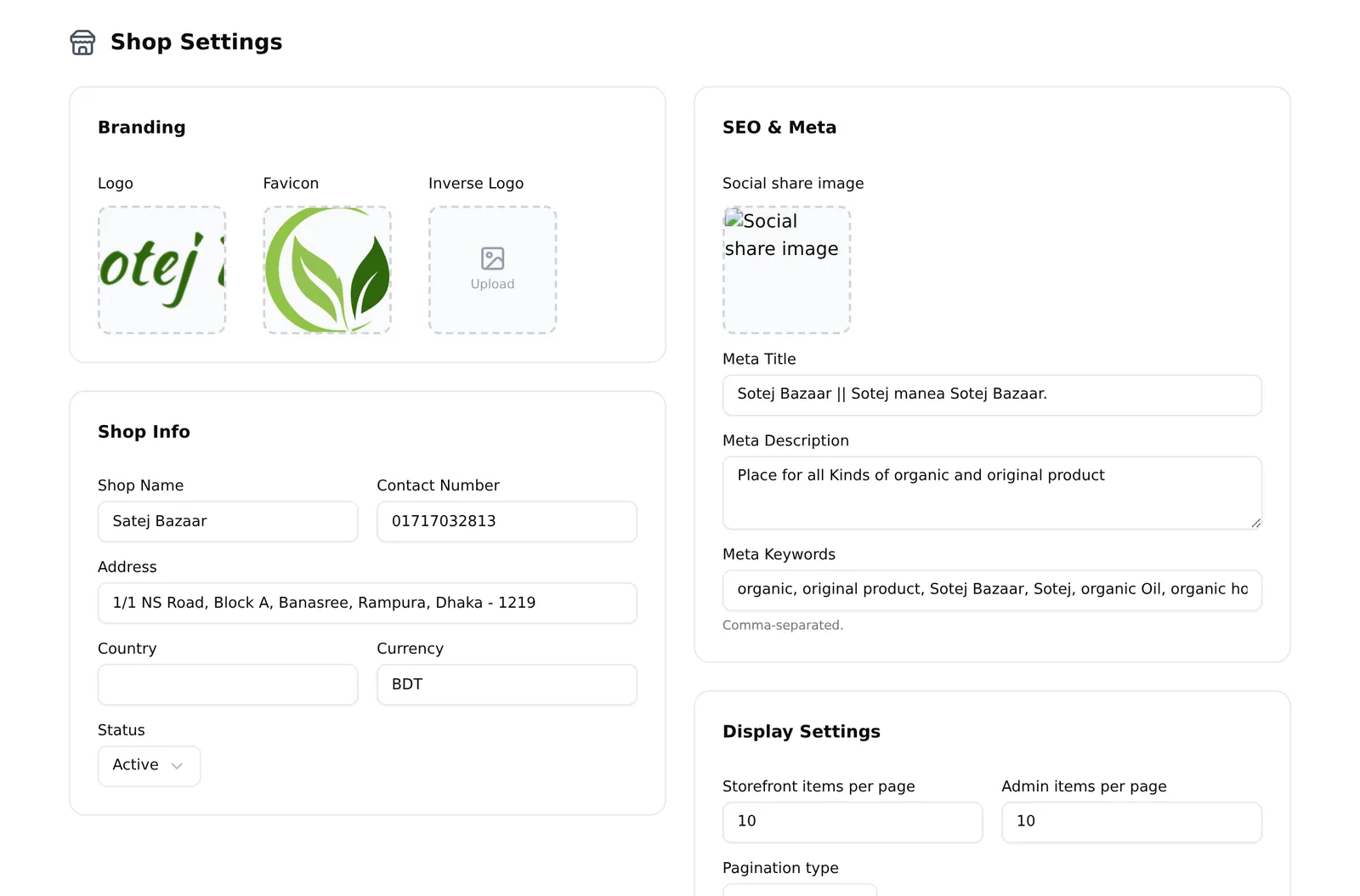
Branding — Logo, Favicon (the small icon in the browser tab) and Inverse Logo (for dark backgrounds).
Shop Info — Shop Name, Contact Number, Address, Country, Currency, and Status (Active or Inactive).
These fields appear in more places than you expect. Your name, address and phone print on every invoice, packing slip and delivery slip. Fill them in properly before you print anything for a customer.
SEO & Meta — a social share image (shown when someone posts your shop link to Facebook or WhatsApp), meta title (~60 characters), meta description (~155 characters) and comma-separated keywords. Worth doing once, properly.
Display Settings — how many items per page on your storefront and in the dashboard, and whether your storefront uses Infinite Scroll or Page Based navigation.
Your own domain
Sidebar → Settings → General → Domain.
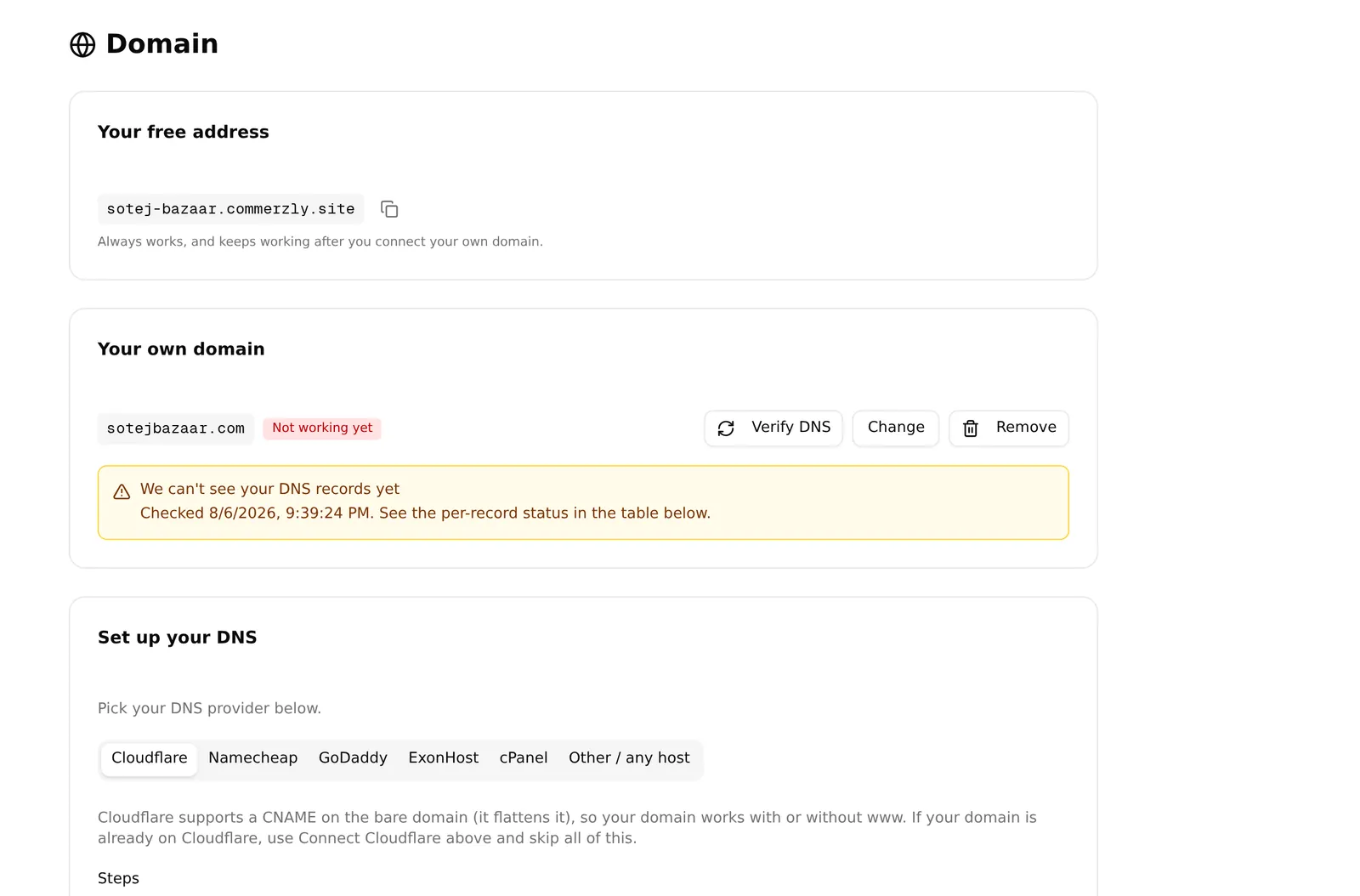
You always have a free address that works from day one, shown at the top with a copy button. It keeps working after you connect your own domain, so nothing breaks during the switch.
To use your own: Add a domain, type it, save, then follow the DNS instructions. The status tells you where you are:
| Status | Meaning |
|---|---|
| Not set | No custom domain yet |
| Waiting for DNS | Records not visible yet — DNS can take hours |
| Almost there | Found, being verified |
| Live | Working |
| Not working yet | Something is wrong with the records |
If your domain provider supports it you may see Set up automatically, which does the DNS for you, or Connect Cloudflare. Otherwise copy the records into your provider’s control panel by hand.
Plan note: custom domains are a paid feature. Without it this page shows “Custom domains are not on your plan” and a link to the plans. Your free address is unaffected.
Guest checkout and OTP
Sidebar → Settings → Checkout & Security → Guest Checkout & OTP.
Login & Security controls how customers order:
- Email login and Phone login — how customers sign in
- Allow orders without login — lets people buy without an account. Leave this on. Forcing account creation is the fastest way to lose a sale
- Auto-create user account from phone number — quietly makes an account from their phone, so they have order history without filling a form
- Guest OTP order — texts a code to verify the phone number before the order goes through
- OTP verification for logged-in users — the same for account holders
- Max OTP attempts (1–10) and OTP block duration (1–168 hours) — how many wrong codes before the number is blocked, and for how long
Every OTP option needs an active SMS gateway and stays greyed out without one. See Apps & integrations.
OTP is worth turning on if fake Cash on Delivery orders are costing you money — it proves the phone number is real and reachable. It also adds a step to checkout, so weigh it against your abandonment rate.
Locations
Sidebar → Settings → General → Locations. Three tabs — Countries, Cities and Areas — holding the place names your shop uses.
This list is not decoration. It feeds two things customers touch:
- The city picker on a Custom delivery charge. A city that is not here cannot have its own charge.
- The address fields at checkout.
Most shops never need to change it — Bangladesh’s districts are already there. Add an area only when customers are typing somewhere your list does not offer.
Deleting a location that orders already reference does not rewrite those orders. Past orders keep the address as it was recorded.
reCAPTCHA
Sidebar → Settings → Checkout & Security → reCAPTCHA. One field: your Google reCAPTCHA site key, from the Google reCAPTCHA admin console for your store domain.
Leave it empty to switch the captcha off.
Common problems
“I saved my company details and they vanished.” You were on General, not Shop Settings. That page does not save. Enter them again under Shop Settings.
“My invoices have no logo or address.” Both come from Shop Settings → Branding and Shop Info.
“My domain says Waiting for DNS.” DNS changes take time — often a few hours, sometimes a day. Check the records match exactly, then wait before changing anything again.
“The OTP switches are greyed out.” No active SMS gateway.
“An item disappeared from my Settings menu.” Some of these are core apps. Uninstalling the app removes its menu entry — check Sidebar → Apps → Installed Apps.