Adding and arranging sections
A section is one horizontal block of the page: a banner, a row of products, a heading, a block of text. A page is just sections stacked in order.
Adding one
Add at the top of the Sections rail — or Add your first section on an empty page — opens the section gallery.
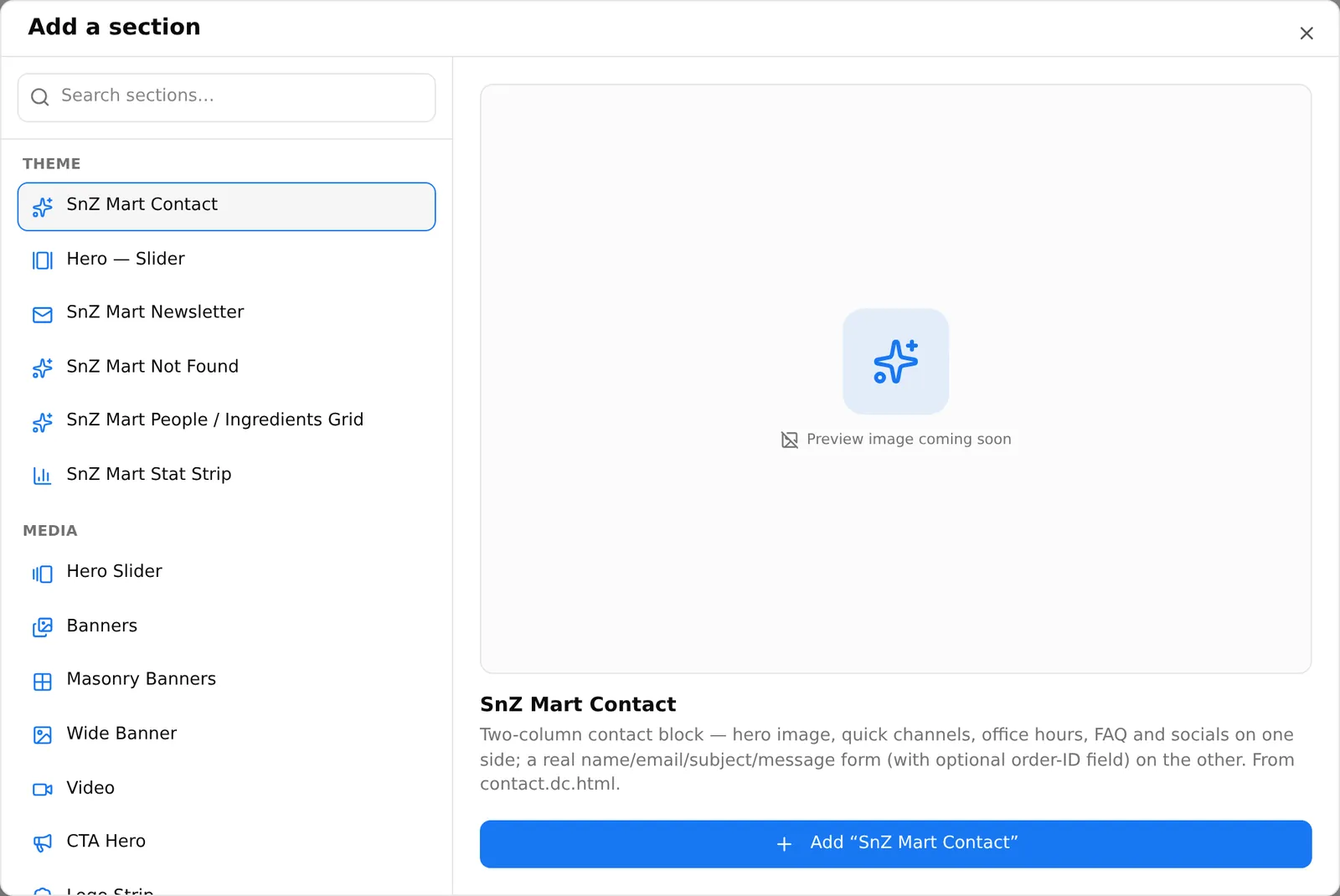
The left side lists every section you can add, grouped by category:
| Category | What is in it |
|---|---|
| Theme | Extra sections that came with your active marketplace theme |
| Media | Sliders, banners, video |
| Products | Product grids, sliders, categories, brands |
| Content | Headings, text, buttons, FAQ, testimonials, custom HTML |
| Layout | Spacing |
Type in Search sections… to filter by name or description. Hovering a name shows a large preview and its one-line description on the right; Add ”…” under the preview adds it, and so does clicking the name in the list.
New sections are added at the bottom of the page. Drag it where you want it.
Some sections have no preview picture yet and show “Preview image coming soon” with their icon instead. That is cosmetic — the section works.
Reordering
Three ways, all equivalent:
- Drag the ⠿ handle on the left of a row.
- Hover a row and use the small ▲ / ▼ arrows. Better on a touchpad, and the only way that works with a keyboard.
- On default pages only, drag the block in the preview itself.
The row controls
Hover a section row to reveal, on the right:
| Control | What it does |
|---|---|
| Duplicate | An exact copy, inserted directly below, selected for editing |
| Hide / Show | Keeps the section but stops it rendering on the storefront |
| Delete | Removes it. Undo with Ctrl/Cmd + Z |
A hidden section stays in the list, greyed, marked (hidden). Use it to park a seasonal banner instead of rebuilding it every year.
The same Duplicate and Delete buttons sit at the top of the settings panel for the selected section.
What the row markings mean
| Marking | Meaning |
|---|---|
| The number | Its position on the page |
| (hidden) | Hidden from the storefront |
| (theme inactive) | Came from a theme you are no longer using — see below |
| A red ⚠ | Something required is missing; the tooltip says what |
| Blue outline | Currently selected |
Selecting a section
Click a row, or click the block in the preview. The right panel then shows that section’s options, and the preview outlines the block so you can see which one you are changing.
Sections from a theme you turned off
Marketplace themes can ship their own sections. If you switch to another theme, sections belonging to the old one are kept — your content is never thrown away — but they cannot render, so they are marked (theme inactive).
When you publish, a warning lists them by name:
N widgets from an inactive theme won’t show on the storefront. Reactivate that theme to show them again, or delete the blocks. Publishing keeps their data either way.
Publishing is allowed. The choice is yours: switch that theme back on, or delete the blocks.
Rows and columns
The default page builder adds a Row / Columns section: a grid of 1–4 columns you can drop other sections into, with a gap setting and a width per column. That is how a filters sidebar sits beside a product grid.
Ordinary pages do not have Row sections. To put things side by side there, use a section that is already multi-column — Feature Grid, Services, Stats, Products + 3 Banners — or a Custom HTML block.
Common problems
“I added a section and nothing happened.” It went to the bottom of the page. Scroll the Sections list down.
“I deleted the wrong thing.” Ctrl/Cmd + Z, or close the page without saving.
“The preview is not showing my change.” It re-renders a second or two after you stop typing. If it stays stale, reload the page — your draft is autosaved.
“I cannot drag anything.” Drag the ⠿ handle, not the section name. The name is a button that selects the section.