The builder, screen by screen
Everything your storefront shows — the home page, a campaign landing page, the product page, the header, the footer — is built from sections you stack, reorder and style. This part of the guide covers every control in that editor and every section you can add.
There are four builder screens. They look and behave the same, because they are the same editor with a different list of things to add:
| Screen | Where | Builds |
|---|---|---|
| Page builder | Online Store → Pages → Pages → open a page | Your own pages, landing pages, the home page |
| Default page builder | Online Store → Pages → Default Pages → open one | Product, cart, checkout and the other built-in pages |
| Header builder | Online Store → Design → Headers → open one | The bar at the top of every page |
| Footer builder | Online Store → Design → Footers → open one | The block at the bottom of every page |
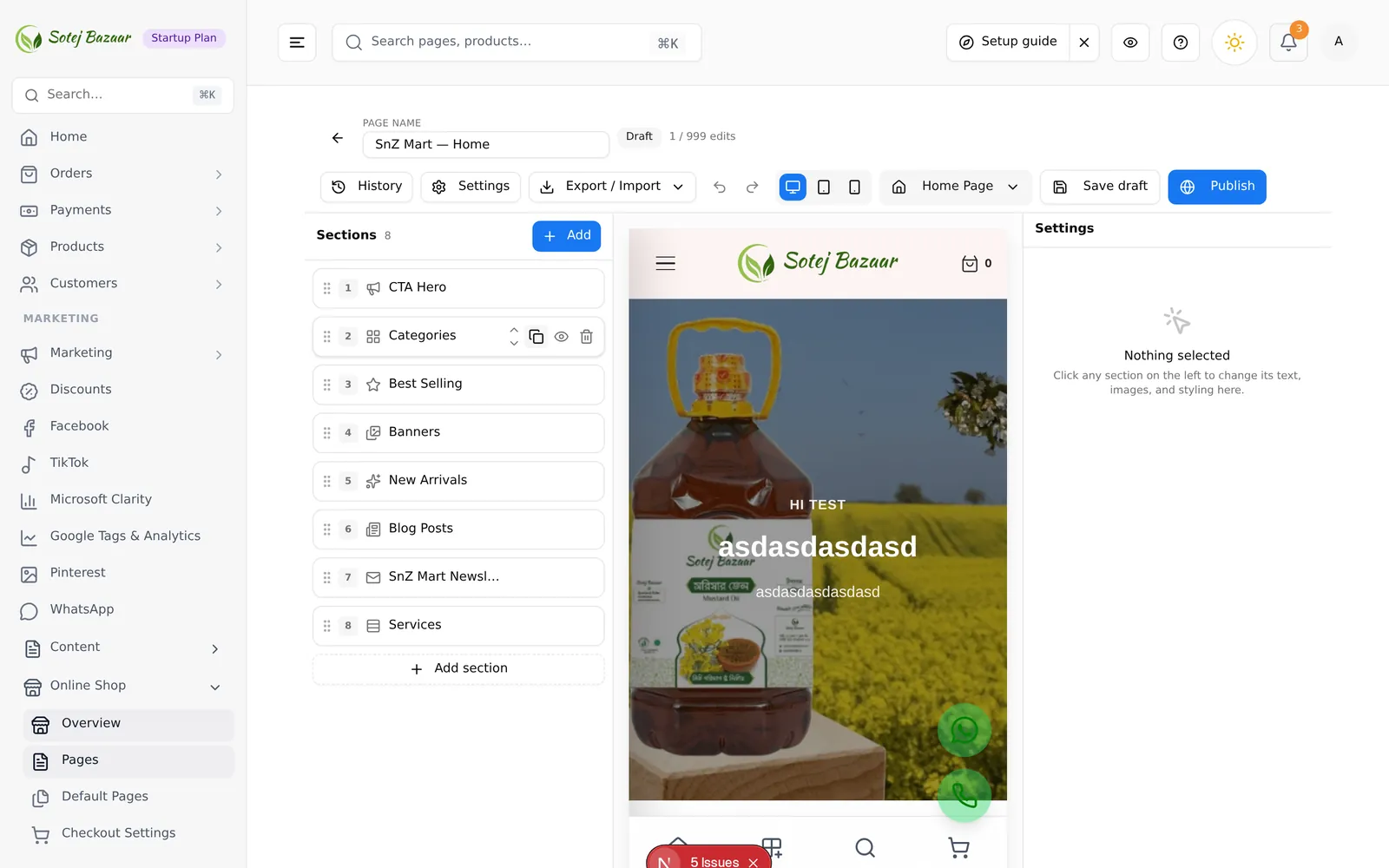
The three columns
Left — Sections. Everything on the page, top to bottom, in the order customers see it. The header of this rail shows how many sections there are and carries the Add button.
Middle — the preview. A live copy of your real storefront, not a drawing of it. It re-renders a second or two after every change. Click any block in the preview to select it; the matching row in the Sections list highlights and its options open on the right.
Right — settings. The options for whichever section is selected. With nothing selected it reads “Nothing selected — click any section on the left to change its text, images, and styling here.”
On a narrow screen the two side rails are hidden. Use the builder on a laptop or desktop, not a phone.
The toolbar
Left of the toolbar, in order:
- ← back to the page list. It asks first if you have unsaved changes.
- Page name — an editable box. This is also the name customers see in menus.
- The page URL, under the name, with an Edit link that opens page settings. Hidden on the home page and on default pages, which sit on fixed addresses.
- Live or Draft — whether the published version of this page exists, not whether your current screen is saved.
- Save status — Unsaved changes, Saving…, Saved, or N to fix.
- Page edits —
12 / 50 edits, only on plans with a limit.
Right of the toolbar:
| Control | What it does |
|---|---|
| History | Every stored version of this page — see page settings & history |
| Settings | SEO, layout, visibility, header/footer, custom CSS |
| Export / Import | Download this page as a .json file, or load one |
| Undo / Redo | Steps back and forward through your changes |
| Device buttons | Preview at desktop, tablet (820px) or mobile (390px) width |
| Set as Home | Make this page the storefront home page |
| Save draft | Store your work. Customers see nothing |
| Publish | Push it live, after a confirmation |
Keyboard: Ctrl/Cmd + S saves, Ctrl/Cmd + Z undoes, Ctrl/Cmd + Shift + Z (or Ctrl + Y) redoes. The builder remembers 50 steps of undo per editing session; closing the page starts a fresh history.
Draft and live are two different things
This is the single most common confusion, so it is worth being blunt about it.
- Save draft writes your work to your account. Nothing changes for customers.
- Publish rebuilds the page on your storefront. This is the only action customers ever see.
The builder also autosaves your draft about two seconds after you stop making changes, so a closed tab or a dead battery does not cost you the work. Autosave is still only a draft.
Publishing asks for confirmation first, and says so plainly when the page is your home page. If any section is incomplete, Publish is disabled and the toolbar shows how many sections need fixing — see section settings.
If you try to leave with unsaved changes, the browser asks whether you really want to go.
Set as Home
Set as Home publishes the page and makes it your storefront’s front page. The dropdown offers three targets:
- Desktop & Mobile — one home page everywhere
- Desktop only
- Mobile only — a separate, usually shorter, mobile home page
Once a page is the home page the button reads Home Page, and the page’s own URL row disappears: the home page is served from your store address itself.
Page edit limits
If your plan caps page edits, the toolbar shows a counter — 12 / 50 edits.
Unlimited plans show nothing.
One “edit” is a 30-minute editing session on a page, not one save. Autosave does not eat the allowance: you can work on a page for half an hour of constant saving and spend one edit. When the cap is reached, saving stops and the upgrade dialog opens. See your plan.
When the preview will not load
Live preview unavailable — this shop has no store address yet. Finish shop setup (or add a custom domain) to enable it.
The preview is your real storefront in a frame, so it needs a store address to load. Set one in Settings → General → Domain. Everything else in the builder still works; you are just editing without the picture.