Getting started
Welcome to BitCommerz. This guide covers everything in your dashboard — one section per part of the menu you see on the left, in the same order.
How this guide is organised
Every page follows the same shape, so you always know where to look:
- What it’s for — in plain language, no jargon
- Where to find it — the exact menu path, like Orders → Abandoned Checkouts
- Steps — numbered, in the order you do them
- Plan note — if a feature needs a particular plan, it says so
- Common problems — the two or three things that actually go wrong
Where a screen is unfinished or does not do what its label suggests, this guide says so plainly rather than describing it as working. You should be able to trust it against your own dashboard.
Finding your way around
The menu on the left is grouped by the job you are doing:
| Section | What is in it |
|---|---|
| (top, no heading) | Dashboard, Orders, Products, Inventory, Customers, Payments, Shipping, Analytics, AI Studio |
| Marketing | Marketing, Discounts, SEO, Ads & Tracking, Customer Chat |
| Online Store | Overview, Pages, Design, Themes, Checkout Settings, URL Redirects, Shop Preview |
| Content | Media Library, Blog, Forms |
| Apps | App Store, Installed Apps, Add-ons (Legacy) |
| Settings | General, Checkout & Security, SMS & Email, Users & Access, Billing, Notices, Support |
Three things make it quicker to use:
- The group you are in opens by itself, with the current page marked.
- Pin what you use most. Hover over any menu item and click the pin (Pin to top). Pinned items appear in a Pinned list at the top of the menu. Click the pin again to Unpin.
- Search instead of clicking. Press ⌘K (Mac) or Ctrl+K (Windows), or click Search… at the top of the menu, and type a page, product, order or customer.
If you knew the old menu
The menu was reorganised. The pages themselves did not change, only where they sit:
| Was | Now |
|---|---|
| Home | Dashboard |
| Statistics | Analytics → Statistics |
| Orders → Order Reports | Analytics → Order Reports |
| Products → Product Reports | Analytics → Product Reports |
| Products → Inventory / Low Stock | Inventory → Stock Levels / Low Stock |
| Operations → Warehouses | Inventory → Warehouses |
| Operations → Fraud Checker | Orders → Fraud Checker |
| Operations → Delivery → Delivery Charges / Couriers | Shipping → Delivery Charges / Couriers |
| Marketing → Facebook, TikTok, Google, Pinterest, Clarity | Marketing → Ads & Tracking → … |
| Marketing → WhatsApp, OmniConva | Marketing → Customer Chat → … |
| Online Shop | Online Store |
| Online Shop → Pages / Default Pages | Online Store → Pages → … |
| Online Shop → Appearance, Headers, Footers, Menu Builder | Online Store → Design → … |
| Themes → Theme Marketplace, Purchased Themes, Active Theme | Online Store → Themes → … |
| Apps → URL Redirects | Online Store → URL Redirects |
| Apps → Blocked IPs | Settings → Checkout & Security → Blocked IPs |
| Integrations → SMS Gateways / Email Gateways | Settings → SMS & Email → … |
| Settings → General Settings → General, Shop Settings, Domain, Locations | Settings → General → … |
| Settings → General Settings → Guest Checkout & OTP, reCAPTCHA | Settings → Checkout & Security → … |
Setting up a new shop
Your dashboard has a Setup guide button in the top bar with a six-step checklist. Work through it in order — each step unblocks the next:
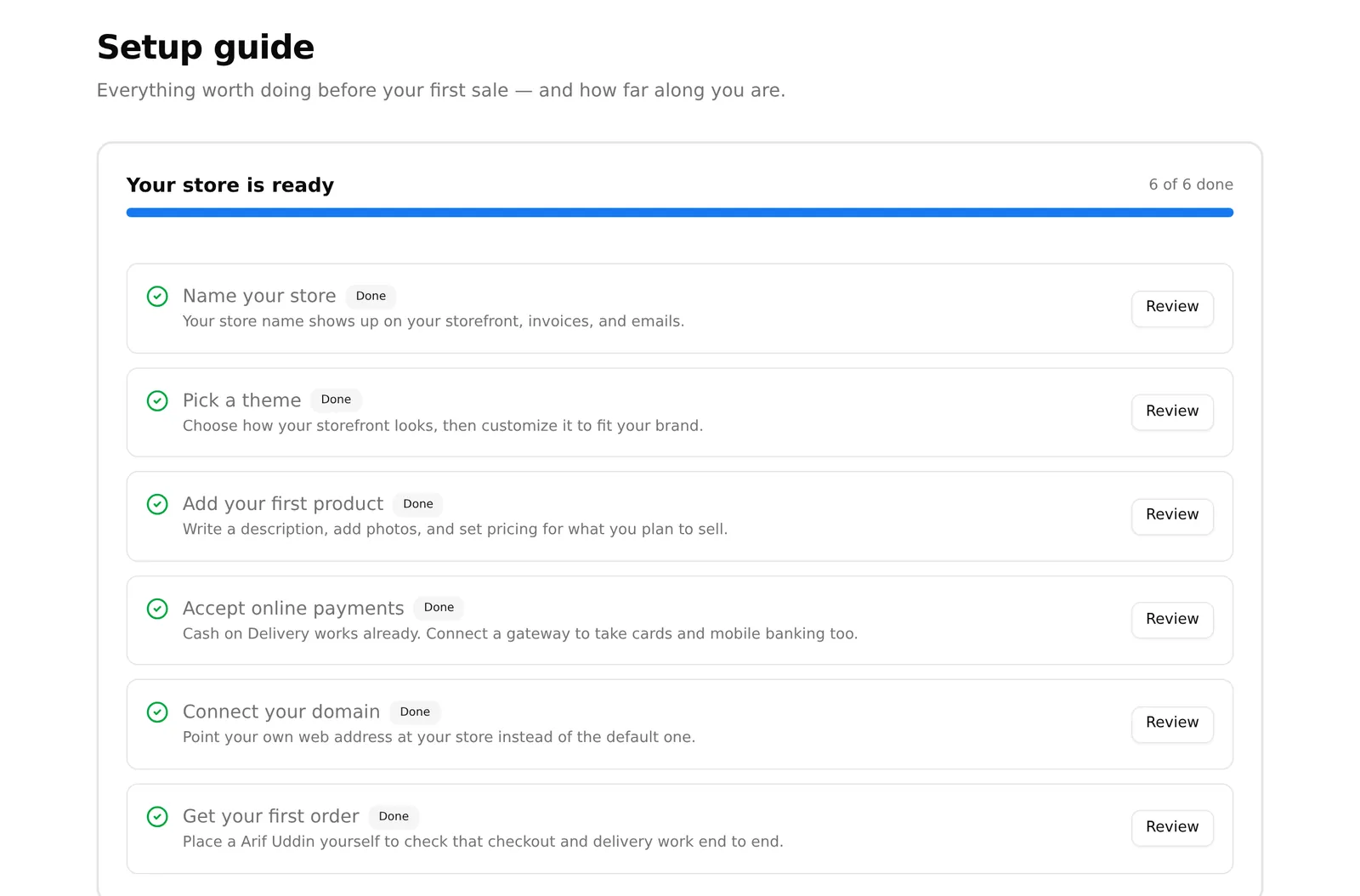
- Shop name — appears on your storefront and every invoice
- Theme — your whole design at once
- First product — nothing else does much until you have one
- Payment — a gateway beyond Cash on Delivery
- Domain — your own web address
- First order — place a test order yourself before you advertise
Once every step is done you can hide the button; it moves permanently into the menu under your name, top right.
Getting help
Sidebar → Settings → Support has the BitCommerz team’s email and phone, plus a chat widget.
Include these four things and you will usually get an answer in one reply:
- The order number or product name — not “an order”, the actual one
- What you expected, and what happened instead
- The exact message on screen, typed out or photographed
- Your shop’s web address
If the problem is a payment, add the transaction ID and the gateway’s response from Online Payments — that is the evidence the gateway will ask for, and having it up front saves a round trip.
If something is missing from your menu
A missing menu item almost always means one of two things: your current plan does not include that feature, or the app behind it was uninstalled. Both are explained in What’s included in my plan.