Section settings, control by control
Select a section and its options open on the right. Every section uses the same set of controls, so once you know these you know all of them.
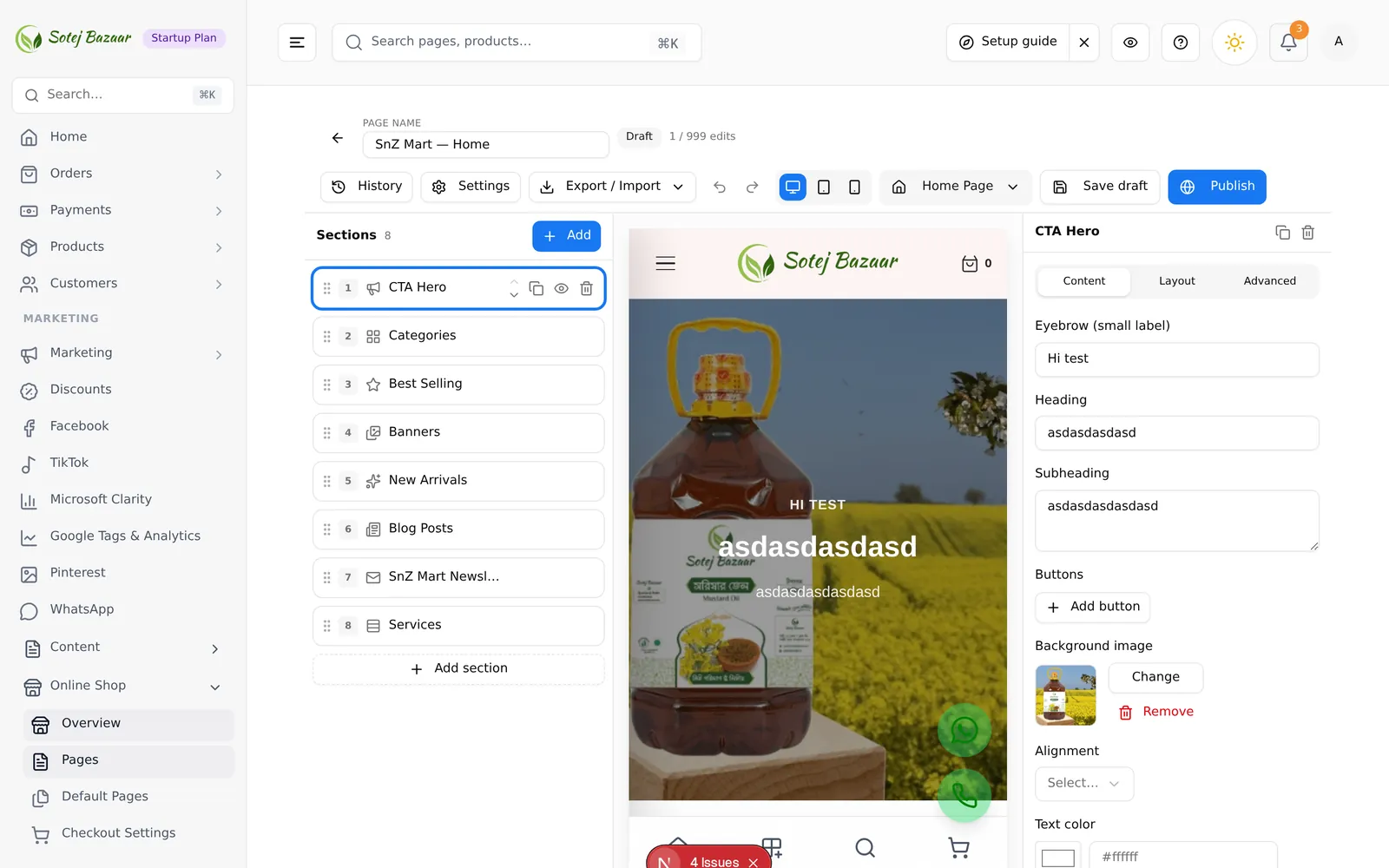
The three tabs
| Tab | Holds |
|---|---|
| Content | What the section says and shows — text, images, products, links |
| Layout | Width, font, spacing, columns, gaps, heights |
| Advanced | Background, custom CSS, and the per-device show/hide toggles |
A section only shows the tabs it needs; with one group of options there is no tab strip at all. Some controls appear only once another is set — the Feature image position dropdown, for example, appears after you choose a feature image.
Content controls
Text box — a single line: a heading, a button label, a price.
Text area — several lines of plain text, for a subheading or a description.
Rich text — a small word processor: bold, italic, lists, links, headings. Used by Rich Text and by FAQ answers.
Switch — on/off, applied immediately.
Number — a plain number box. Some have a minimum (a product count cannot go below 1) or a step.
Dropdown — a fixed set of choices. Where a dropdown offers Theme default, that empty choice is meaningful: it means “whatever the theme and your Appearance settings say”.
Colour — a colour swatch beside a text box. Click the swatch for the picker,
or type a hex value such as #111827. Clearing the box returns the section to
the theme’s colour.
Range — a slider for percentages, such as an image overlay.
Lines of text — a box where one per line becomes one item; used for things like search categories and rotating messages.
Image
Click Choose image to open your media library.
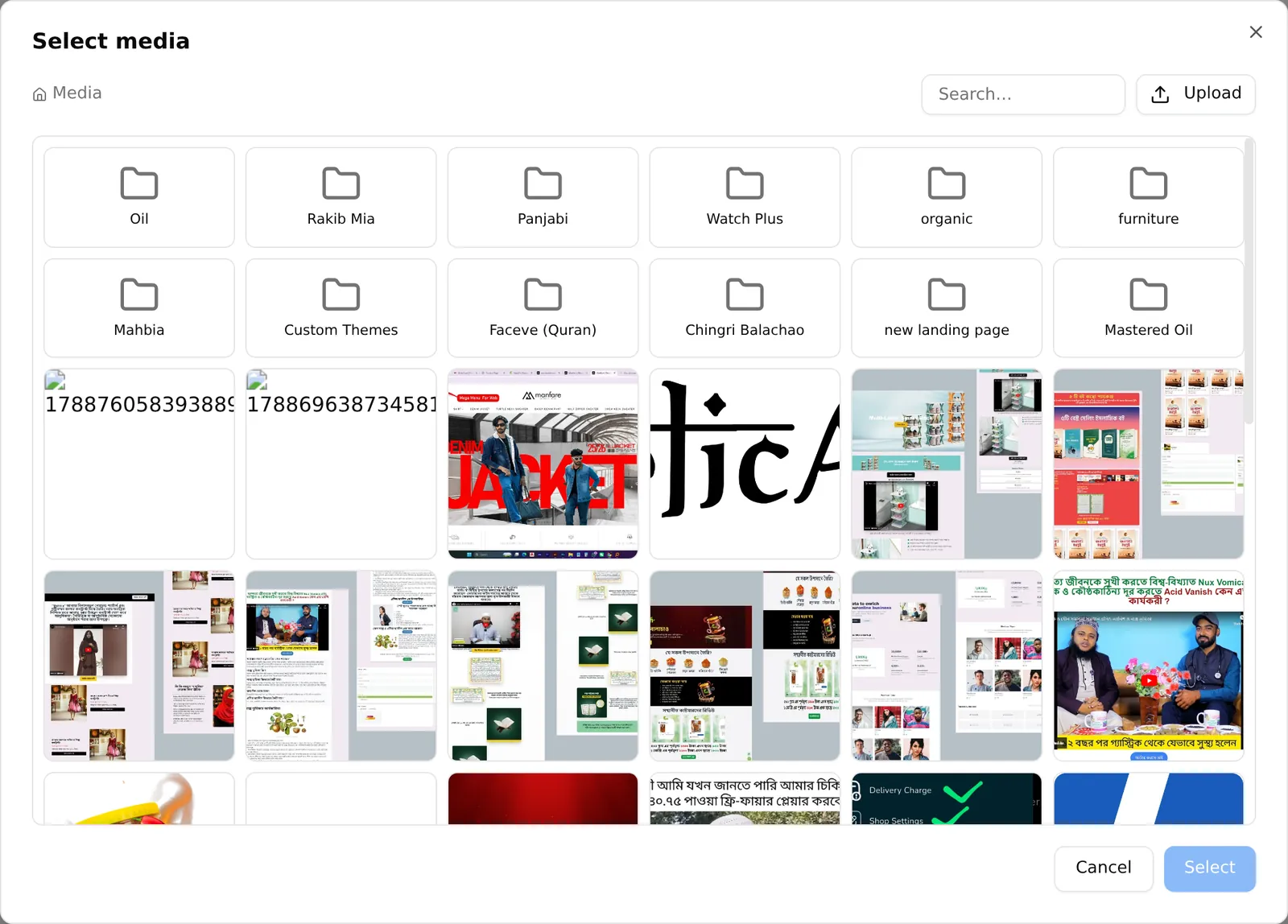
In the dialog: search by filename, scroll and press Load more for older files, or drag files onto the drop area to upload — Drop images to upload. Click an image to pick it, then confirm. Remove clears the field again.
Image list
Sliders, banners and logo strips take a list of images. Each row is one image:
- The thumbnail — click it to swap the picture
- The link, or No link
- 🔗 — opens the link editor for that image
- 🗑 — removes it
- ⠿ — drag to reorder; the order here is the order on the storefront
Add image appends one, and you can select several files at once.
Link
A link is two parts, a type and a value:
| Type | What you type | Example |
|---|---|---|
| Custom URL | A full address or a path on your store | https://… or /summer-sale |
| Category | The category slug | mens-shoes |
| Brand | The brand slug | nike |
| Product | The product slug | red-cotton-shirt |
| Page | The page slug | about-us |
A Link text (optional) box appears where the section does not already supply its own label.
Products
Product sections use a two-tab picker.
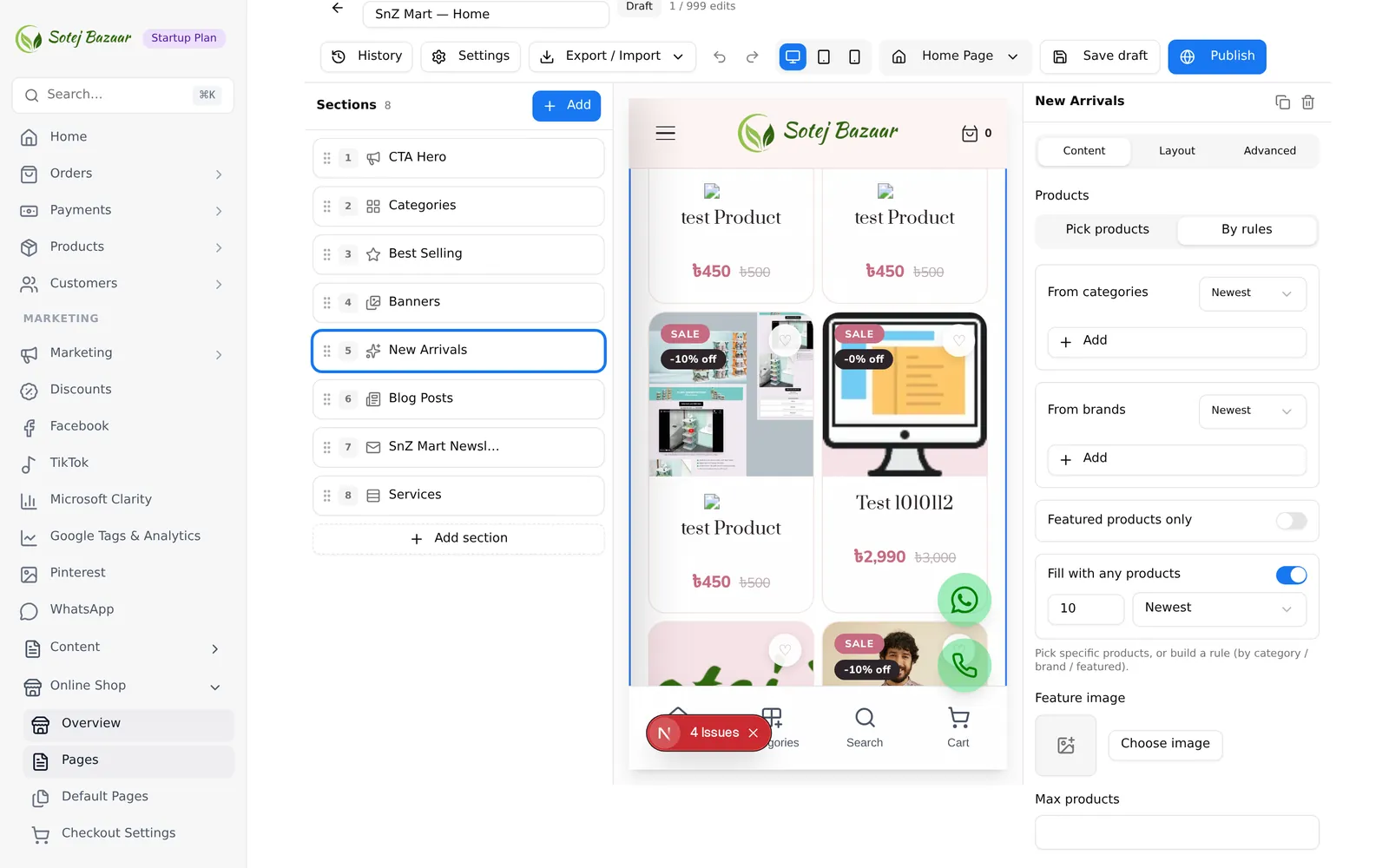
Pick products — search your catalogue and choose products by hand. They show in the order listed; drag to reorder.
By rules — the section fills itself, and keeps filling itself as your catalogue changes:
- From categories — pick categories, set a maximum per category in the small box beside each, and choose Newest, Oldest or Random
- From brands — the same, per brand
- Featured products only — restrict to products you flagged as featured
- Fill with any products — top up with anything else if the rules do not return enough
- Limit — the total cap for the section
Both tabs keep their contents. The tab you are on is the one the storefront uses, so you can prepare a hand-picked list and switch to it later.
Categories and brands
Sections that show categories or brands ask first:
- All categories / All brands — everything, capped by Maximum to show
- Pick specific — a searchable picker; the cap no longer applies
Left unset, a section with a saved selection keeps showing it, and every other one shows everything.
Repeating items
Testimonials, FAQ entries, services, stats, features, pricing plans and slider slides are all repeaters. Each item is a collapsible card: click the title to open it, ⠿ to drag it, 🗑 to delete it, and the Add … button at the bottom to add another. The card’s title comes from the item’s own name or title field, so the list stays readable.
Menu
Header and footer menu elements offer a menu picker, listing the menus you built in Menu Builder. See menus, headers & footers.
Code
Custom HTML and HTML Content Slider use a code field. The panel shows the first few lines and a line count; Edit code opens a full-size editor. (The Custom CSS boxes elsewhere are plain text areas, not this editor.)
The dialog has two modes for HTML:
- Code — a real editor with line numbers and folding
- Visual — edit the rendered result directly: type over the text, apply bold, italic, underline, headings, lists and links
Both edit the same content and switching keeps your changes. Apply puts them into the section; Cancel throws them away. Nothing is saved until you press Apply — the builder does not autosave while the dialog is open.
Layout controls, shared by nearly every section
| Control | What it does |
|---|---|
| Width | Boxed (container) keeps content in the centred column; Full width goes edge to edge |
| Font | A per-section font override. Theme default uses your Appearance setting |
| Gap between items (px) | Space between the cards, images or columns inside the section |
| Padding top / bottom / left / right (px) | Space inside the section, around its content |
| Columns | How many items per row on desktop |
Advanced controls
| Control | What it does |
|---|---|
| Background color | A colour behind this section only |
| Background image | An image behind this section |
| Custom CSS | Your own CSS, scoped to this section |
| Hide on mobile | The section is not rendered on phones |
| Hide on desktop | The section is not rendered on desktop |
Hide on mobile and Hide on desktop are added to every section automatically, on every kind of page. Together they are how you run a different layout on phones without building a second page.
Product card options
Every section that shows product cards carries the same card controls:
Content — Max products, Slider mode, Show add-to-cart, Show buy-now, Hide price, Show discount tag, Hide ratings, Hide brand, Hide quick view.
Colours — card background, card border, title, price, sale price, add-to-cart background and text, buy-now background and text, discount tag background and text.
Set them once per section. They do not change the product itself, only how its card looks here.
When a section shows an error
Some sections cannot render empty, and say so: “Add at least one slide.”, “Heading text is required.”, “Add at least one product or selection rule.”
While any section is in that state:
- the row shows a red ⚠ and the toolbar reads N to fix
- Publish is disabled
- Save draft refuses, with “Fix N section(s) before saving.”
Fill in what is missing, or delete the section. Autosave also pauses, so fix it before you close the tab.