The default page builder
Sidebar → Online Store → Pages → Default Pages.
Your storefront’s built-in pages — product, cart, checkout, search and the rest. You can reorder, hide, restyle and rearrange their sections. What they do is untouched: cart maths, checkout, payment and search all keep working exactly as they did.
Which pages can be edited
| Page | What it is | Editable |
|---|---|---|
| Single product | Product detail — gallery, summary, description, related items | Yes |
| Category / collection | Listing with filters, grid, sorting | Yes |
| Search results | What a search returns | Yes |
| Cart | Line items, coupon, order summary | Yes |
| Checkout | Address, shipping, payment | Yes |
| Order confirmation | The thank-you page after an order | Yes |
| Wishlist | Saved products | Yes |
| 404 / not found | Shown for unknown web addresses | Yes |
| Search page | The search screen before anything is typed | Coming soon |
| Login, Register, Account | Customer sign-in and account screens | Coming soon |
The four marked Coming soon cannot be opened. They work perfectly on your storefront — they simply have no editable layout yet.
How it differs from the page builder
The screen is the same three columns and the same toolbar, minus Set as Home and the page name (a default page’s name is fixed). Three things are different:
- The gallery offers this page’s own sections, plus a set of general content sections and any sections from your theme.
- The preview is a drag surface. You can drag blocks, drop them into columns and remove them directly in the preview, not only in the left rail.
- Some sections are required. They can be hidden but not deleted.
Each page’s sections
Single product
Product detail (all-in-one) is the whole page in one block. Break it up and you get: Breadcrumb, Product gallery, Buy box, Product title, Price, Rating, Short description, Variant picker, Stock status, Quantity, Add-to-cart button, Buy-now button, Wishlist button, Delivery info, Brand / SKU badges, Product description and Related products.
Category / collection
Product listing (all-in-one) (required), or the pieces: Category header, Filters sidebar, Sort & count, Product grid — plus a Featured strip and a Category list.
Search results
Search results (all-in-one) (required), or Search header, Filters sidebar, Sort & count, Results grid.
Cart
Cart (all-in-one) (required), or Cart items and Order summary, plus You may also like.
Checkout
Checkout (required) as one block, or its parts — Customer details, Delivery options, Order products, Payment method, Order note, Additional details, Order summary, Coupon, Terms agreement, Place order. Customer details, payment method, order summary and place order are required.
Order confirmation
Order summary (all-in-one) (required), or Thank you, Order items, Order totals, Shipping address, Payment method, Action buttons, Submitted details, You may also like.
Wishlist and 404
Saved products and 404 message respectively — one required section each, which you restyle rather than replace.
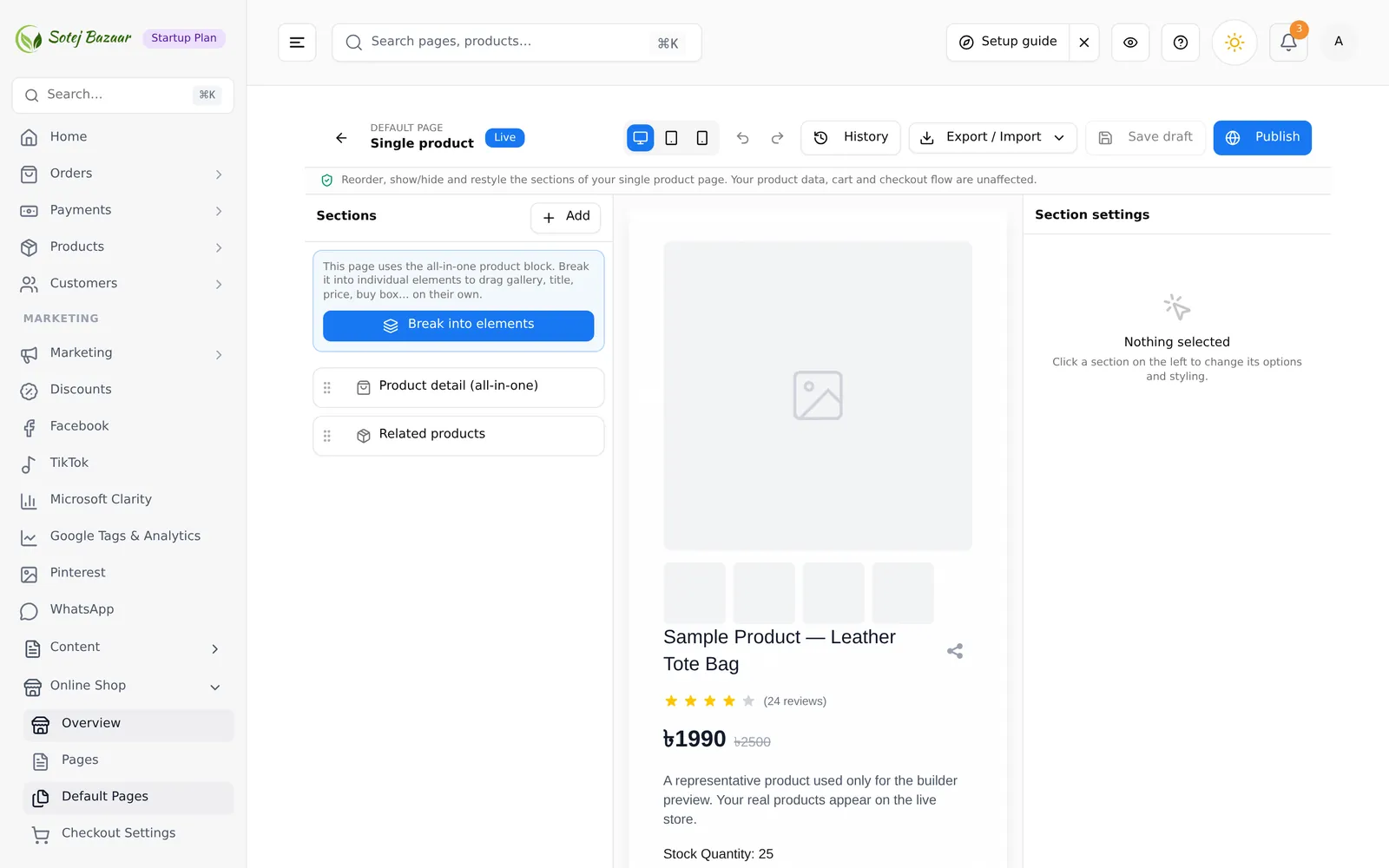
Break into elements
Six pages ship as one all-in-one block: product, category, search, cart, checkout and order confirmation. The left panel offers Break into elements, and the blurb says what you get, for example:
This page uses the all-in-one product block. Break it into individual elements to drag gallery, title, price, buy box… on their own.
After breaking it up you can put the gallery and the buy box in a Row’s columns, drop a banner between the price and the description, or hide the rating.
The two forms are interchangeable. The all-in-one block and its pieces are two ways of saying the same page, so publishing accepts either.
Rows and columns
Row / Columns is a grid you drop other sections into — this is how a filters sidebar ends up beside a product grid.
| Control | What it does |
|---|---|
| Columns | 1 to 4 |
| Gap | Space between the columns, in pixels |
| Column width | Per column: a percentage, a pixel width, or 1fr for “share what is left” |
| Add widget | Inside an empty column — opens the gallery targeted at that column |
Drag a section into a column, between columns, or back out to the top level. Remove from column takes a section out; Remove row deletes the grid.
Adding your own sections to a built-in page
The gallery on a default page also offers general content sections — Section Heading, Rich Text, Button, Hero Slider, Banners, Wide Banner, Video, Product Slider, Categories, Brands and Spacing — so you can put a delivery promise under the buy box or a banner above the cart without touching code.
Saving and publishing
Save draft and Publish work as they do everywhere else — see the builder tour.
Publishing is refused if a required section has been deleted, and the message names it:
Add back required section: Customer details
Add it back from the gallery, or use Ctrl/Cmd + Z. Hiding a required section is allowed — it stays on the page, just not on screen.
Sections from an inactive theme produce a warning but do not block publishing.
Common problems
“I removed something I need.” Undo, or add it back from Add. The names in the gallery match the names in the list.
“My changes are not on the storefront.” You saved a draft. Press Publish.
“Applying a theme reset my default pages.” It does — a theme brings its own layouts. Restore the previous ones from Online Store → Themes → Active Theme → Previous Designs.
“The preview shows sample data.” It has to: a product page needs a product to draw. Your real pages use the real product.