Page settings, history and files
The three toolbar buttons that are not about sections: Settings, History and Export / Import.
Page settings
Settings in the toolbar opens five tabs.
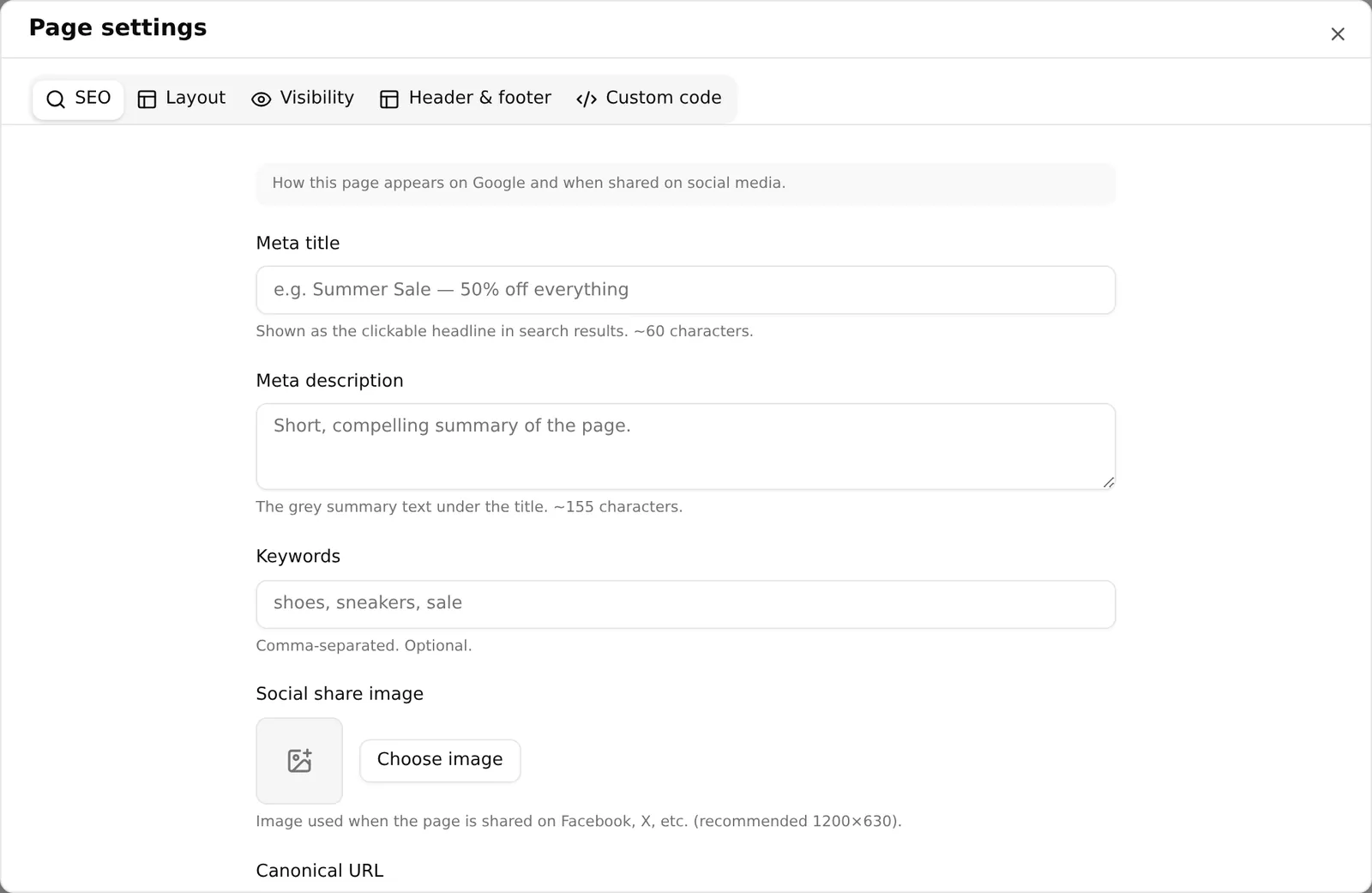
SEO
| Field | Notes |
|---|---|
| Page URL | The web address of this page. Changing it keeps the old address working — visitors are redirected to the new one |
| Meta title | The clickable headline in search results, about 60 characters |
| Meta description | The grey summary underneath, about 155 characters |
| Keywords | Comma separated, optional |
| Social share image | Used when the page is shared on Facebook, X and the rest. 1200×630 recommended |
| Canonical URL | Optional. Points search engines at the preferred address for this content |
The URL box checks as you type — Checking availability…, then This URL is available. Default pages and the home page have no URL field: they sit on fixed addresses.
The same URL is shown under the page name in the toolbar, with an Edit link, because nobody thinks to look for it in a dialog.
Generate with AI on this tab writes the meta title, description, keywords and — where the URL can be changed — the URL, for a few credits. Below the fields, an SEO check scores the page from 0 to 100; the same score shows in the toolbar. Save the page to keep anything AI wrote. See SEO check & SEO health.
Layout
| Field | Notes |
|---|---|
| Page width | Full width (edge to edge) or Boxed (centered) |
| Max width (px) | How wide the centred content can grow. 1200 is typical |
| Page background color / image | Sits behind everything, edge to edge |
| Container background color / image | The centred column only, in front of the page background |
| Default text color | For text that sets no colour of its own |
| Padding top / bottom (px) | Space above and below the page content |
Visibility
Show store header — the top navigation bar with your logo and menu. Show store footer — the bottom section with links and store info.
Landing pages hide both by default, so a campaign page is not competing with your navigation. Turn them back on here.
Header & footer
Header and Footer each offer Shop default or any header or footer you built — “Overrides the shop default header on this page only.” Use it for a stripped-down header on one campaign page.
Custom code
Custom CSS, wrapped in a <style> tag scoped to this page. It applies to the
whole page; a single section’s own Custom CSS lives in that section’s
Advanced tab.
History
History lists every stored version of the page.
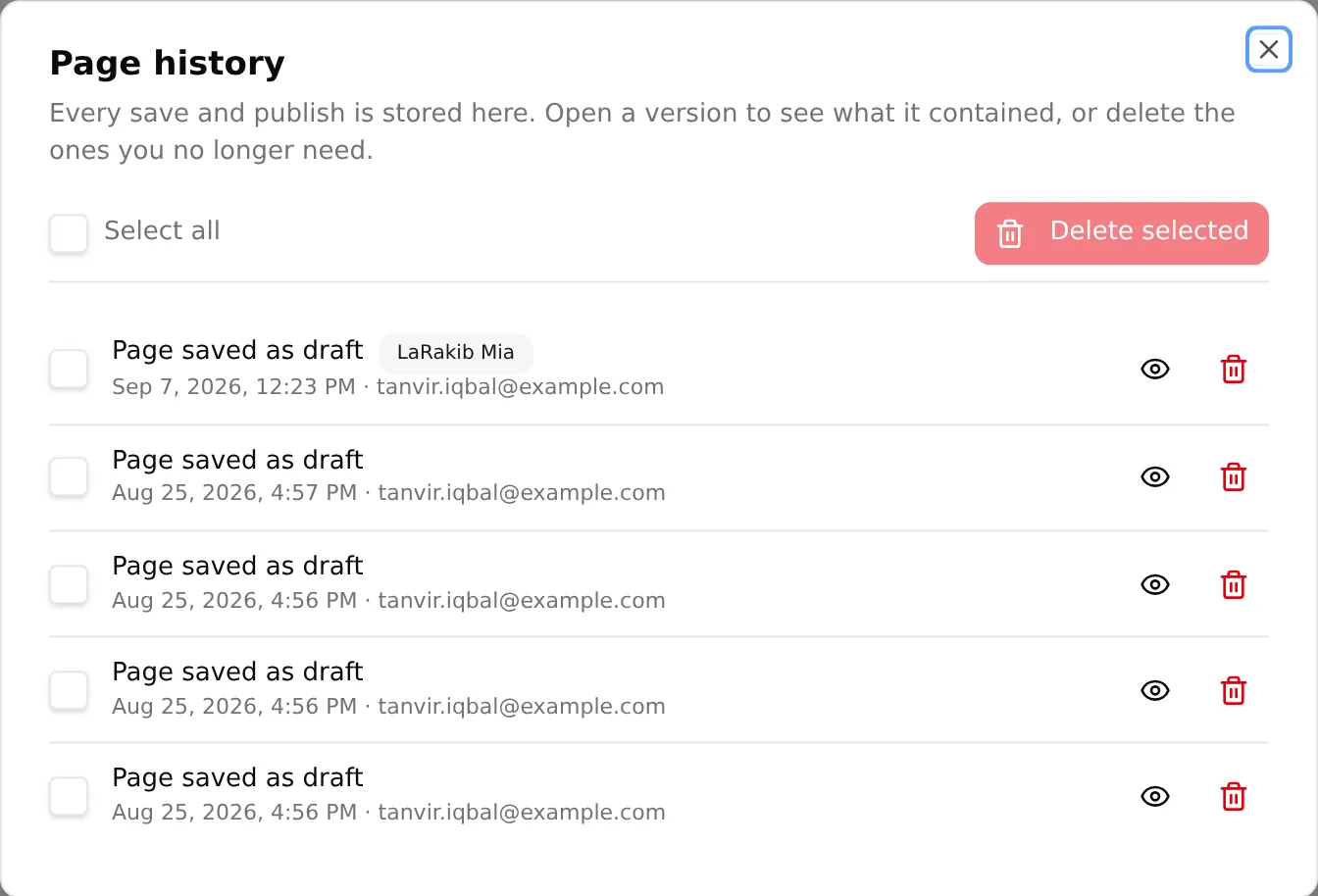
Every save and publish is stored here. Open a version to see what it contained, or delete the ones you no longer need.
Each row shows when it was stored, the page name at the time, and badges: Latest, and Live at the time for a version that was published.
- View this version opens it read-only — “Viewing only — opening a version does not change the live page.”
- Delete this version, or tick several and use Delete selected. Deleting is permanent and always confirmed: “These stored versions will be removed permanently. Your current page is not affected.”
There is no one-click restore. To bring back an old design, open the version, see what it held, and rebuild those sections — or import a file you exported earlier, which is the reason to export before a big change.
Export and import
Export / Import in the toolbar:
- Export page (.json) downloads the current sections and page settings as a file.
- Import page (.json) replaces what is on screen with the contents of a file: “Imported N sections. Review, then Save to keep it.”
Importing is an ordinary edit — undoable with Ctrl/Cmd + Z, and it changes nothing for customers until you Save draft and Publish.
The file is portable, so this is also how you copy a page between your own shops. A file that is not a page export is rejected: “Not a page export — expected a “widgets” array with id/name/data on every item.”
Export before a redesign. It is the closest thing to an undo that survives closing the tab.
Creating a landing page
Online Store → Pages → Pages → Add page → Landing page opens the chooser.
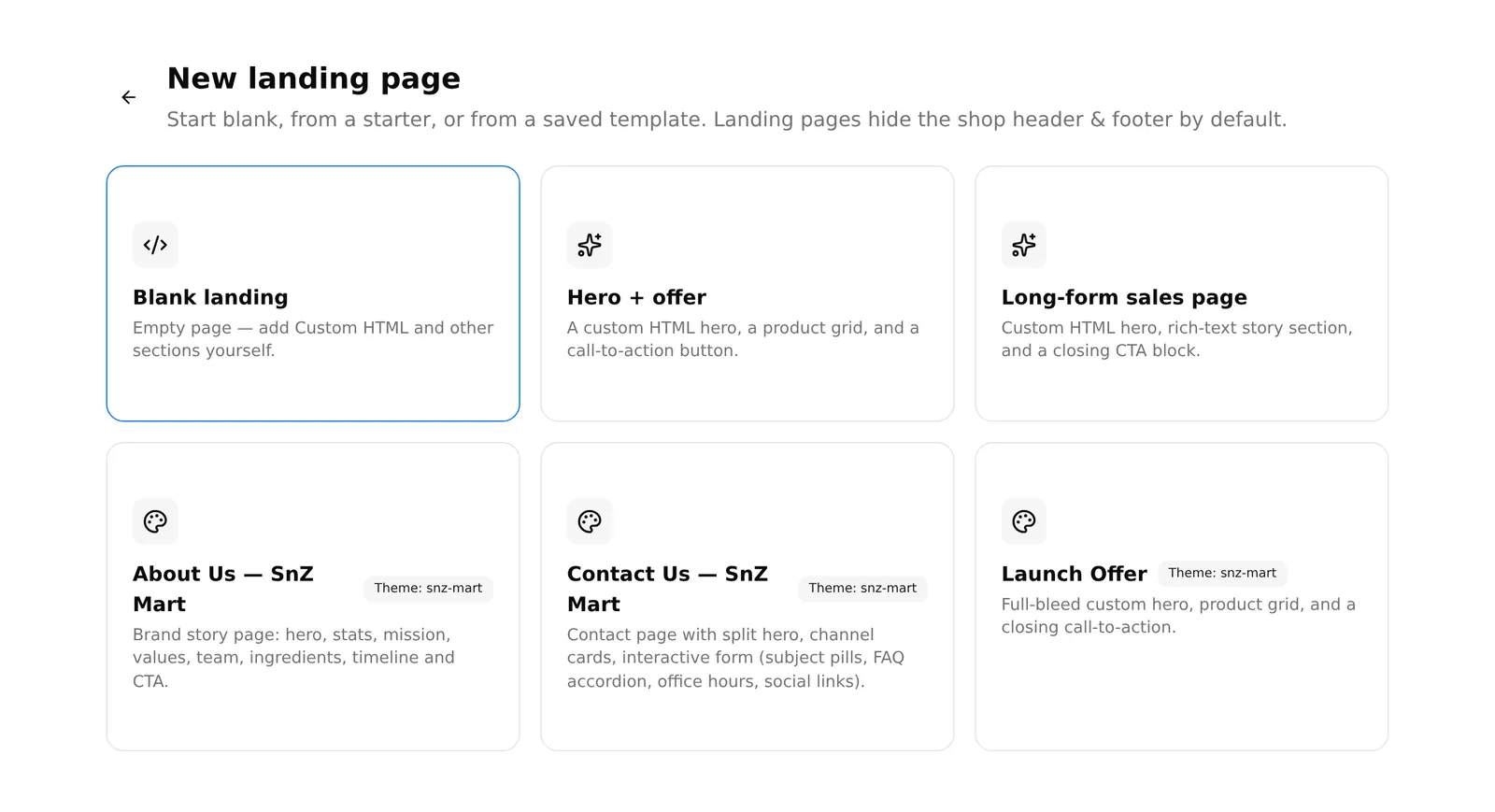
Start blank, from a starter, or from a saved template. Landing pages hide the shop header & footer by default.
| Choice | What you get |
|---|---|
| Blank | An empty page — add Custom HTML and other sections yourself |
| Hero + offer | A custom HTML hero, a product grid, and a call-to-action button |
| Long-form sales page | A custom HTML hero, a rich-text story section, and a closing CTA block |
| Template | Anything your theme ships, or a template published on the platform |
Picking one creates the page and opens it in the builder. Everything in it is editable — a starter is a starting point, not a fixed layout.
Common problems
“I changed the URL and my old links are dead.” They are not. The old address redirects to the new one.
“I want yesterday’s version back.” Open History to see what it contained, then rebuild — or import your export. Restoring in one click is not available.
“My custom CSS does nothing.” Page CSS is scoped to the page. Check the selector actually matches, and that a section’s own Advanced → Custom CSS is not overriding it.
“The header is showing on my landing page.” Landing pages hide it by default, so someone turned it on in Settings → Visibility.